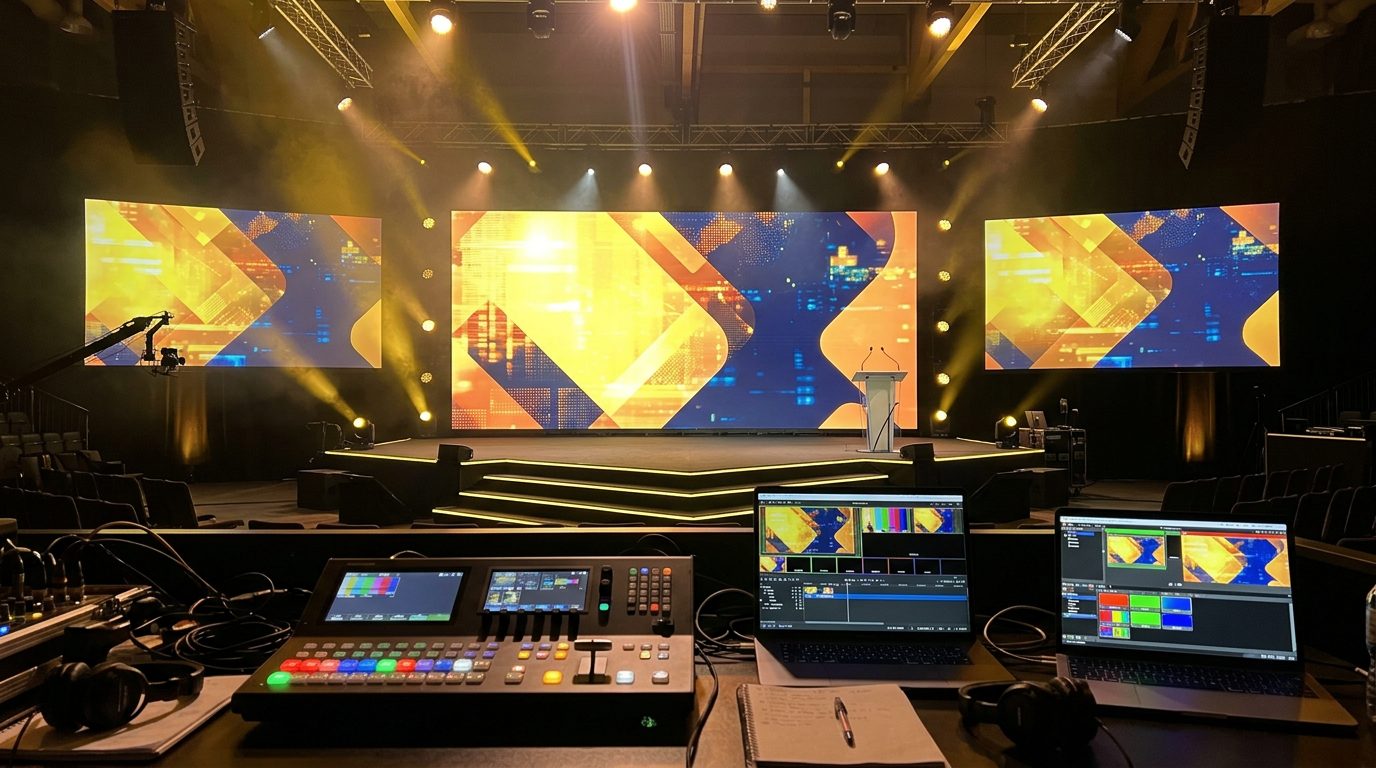
01What AV covers at a corporate event
AV means audio and video, but at a corporate event most of the job is one thing: somebody's laptop, a slide deck, a screen the whole room can read, and sound that comes with it. Awards add videos. Launches add cameras. Conferences add a stream. The basics are the same every time.
Laptop presentations
Slides and video from a presenter's laptop. By far the most common source. By far the most common fault source too.
Screens
Projector and screen, LED wall, or TVs on stands. What the audience actually sees.
Cameras
A camera on the stage shown large on the screens is called IMAG (image magnification). It helps the back rows see the speaker.
Streaming and recording
Sending the show out over the internet, or saving it to a drive. Same picture as the screens, plus sound.
The lectern
Where the speaker stands. It holds the mic, the clicker, a small monitor and often the laptop. Treat it as part of the AV.
B&W is adding a video mixer/streamer. It switches laptop, camera and graphics, sends the program to the screens and to the stream, and can record a local backup.
Who owns what
Two crews meet at the lectern. Audio crew own the desk and the PA. AV or video crew own the switcher and screens. At small events that is the same two people. Either way, someone must be named as the one who talks to the presenter. Agree who before doors.
Picture and sound travel separately. Fault-find them separately: first is there a picture, then is there sound.
02Video signals and cables
Four ways to move a picture. They differ by how far they go and how rugged they are. Pick by distance first, then by resolution.
| Link | Practical distance | Locks? | Notes |
|---|---|---|---|
| HDMI (passive cable) | 10 to 15 m at 1080p. 4K: about 5 m | No. It just pushes in | On every laptop, TV and projector. Cheap, long cables fail first. Tape a loop of slack so a tug does not pull the plug out. |
| SDI (coax with BNC) | About 100 m at HD | Yes. BNC twist-locks | Cameras and broadcast kit. One cable carries picture and embedded sound. 4K needs faster (12G) gear and shorter runs. |
| HDBaseT over Cat6 | 70 to 100 m on good cable. 4K at the short end | Clip only (RJ45) | Needs an extender box at each end, powered. Point to point. Not a network: never through a network switch. |
| Fibre (HDMI over fibre) | Hundreds of metres | Varies. Keep dust caps on | Light, thin, immune to interference. Needs a converter at each end. Do not kink it or stand on it. |
B&W is adding HDMI-to-fibre converters with 25 m fibre lines, and 50 m lengths of shielded Cat6 for extender runs.
Field rules for cable runs
- HDMI is for the last few metres, laptop to switcher. Do not run 15 m of HDMI across a hall because you have one.
- For HDBaseT use solid, shielded Cat6 in one piece. No couplers, no patch leads stuck end to end.
- Run video away from power cables where you can. Cross at 90 degrees.
- Label both ends. Tape anything that crosses a walkway under a ramp.
Try it: which link for this run?
| Distance | 1080p | 4K |
|---|---|---|
| 0 to 10 m | Passive HDMI | Passive HDMI to about 5 m, then active HDMI or HDBaseT |
| 10 to 15 m | HDMI at the limit; HDBaseT safer | Active HDMI or HDBaseT rated for 4K |
| 15 to 70 m | HDBaseT over Cat6 | HDBaseT rated for 4K |
| 70 to 100 m | HDBaseT at the edge; fibre safer | Fibre |
| Over 100 m | Fibre | Fibre |
Never join two HDMI cables with a coupler to make a long one. Each join is a place for the picture to die. Use the right link for the distance.
03Resolution and aspect ratio
Two numbers decide whether slides look sharp and fill the screen: the shape (aspect ratio) and the count of dots (resolution). Both are set before the event, by asking the right question.
Shape: aspect ratio
Aspect ratio is width to height. 16:9 is the modern wide shape: TVs, LED walls, new projectors, YouTube, every current laptop slide template. 4:3 is the old squarish shape from older projectors and older decks. Some laptops are 16:10, slightly taller than 16:9, so slides can show thin bars even on a wide screen.
Sharpness: resolution
| Name | Pixels | Shape | Where you meet it |
|---|---|---|---|
| 720p | 1280 x 720 | 16:9 | Older projectors, small streams |
| 1080p (Full HD) | 1920 x 1080 | 16:9 | The normal for projectors, TVs, laptop outputs and streams |
| 4K (UHD) | 3840 x 2160 | 16:9 | Big TVs, some projectors. Four times the pixels of 1080p, so it needs better cables and gear |
Every screen has a native resolution: its real grid of dots. Send it anything else and it scales the picture, which softens text. So set the laptop output to the screen's native resolution, at 60 Hz, and the picture is as sharp as that screen can be.
LED walls are often a custom shape. Get the exact pixel size from the LED supplier and build slides to that, or the content will not fill the wall.
When the client sends slides, ask: "Are they 16:9?" Ask for 16:9. Tell the presenter on the day: the slide is the shape of the screen, so no black bars, no stretching.
04Screens
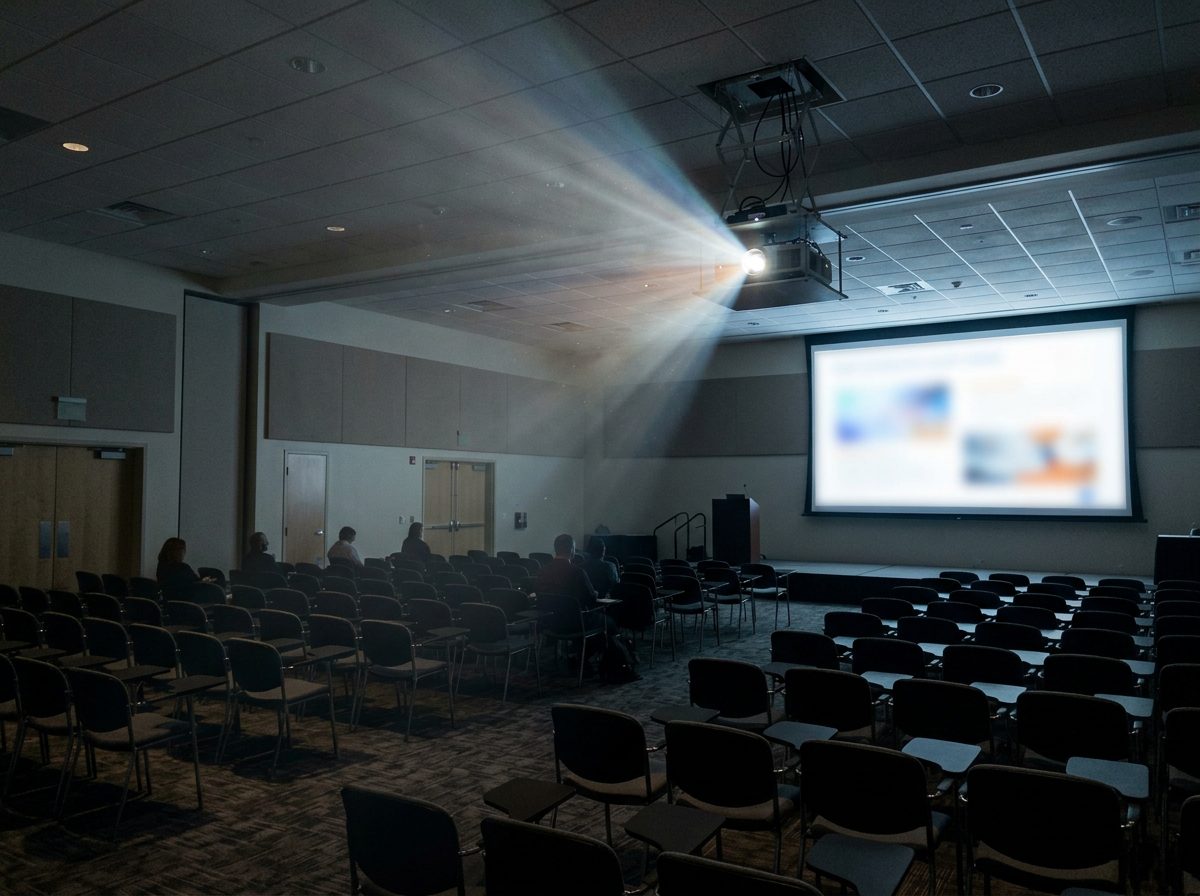 Projector on a screen
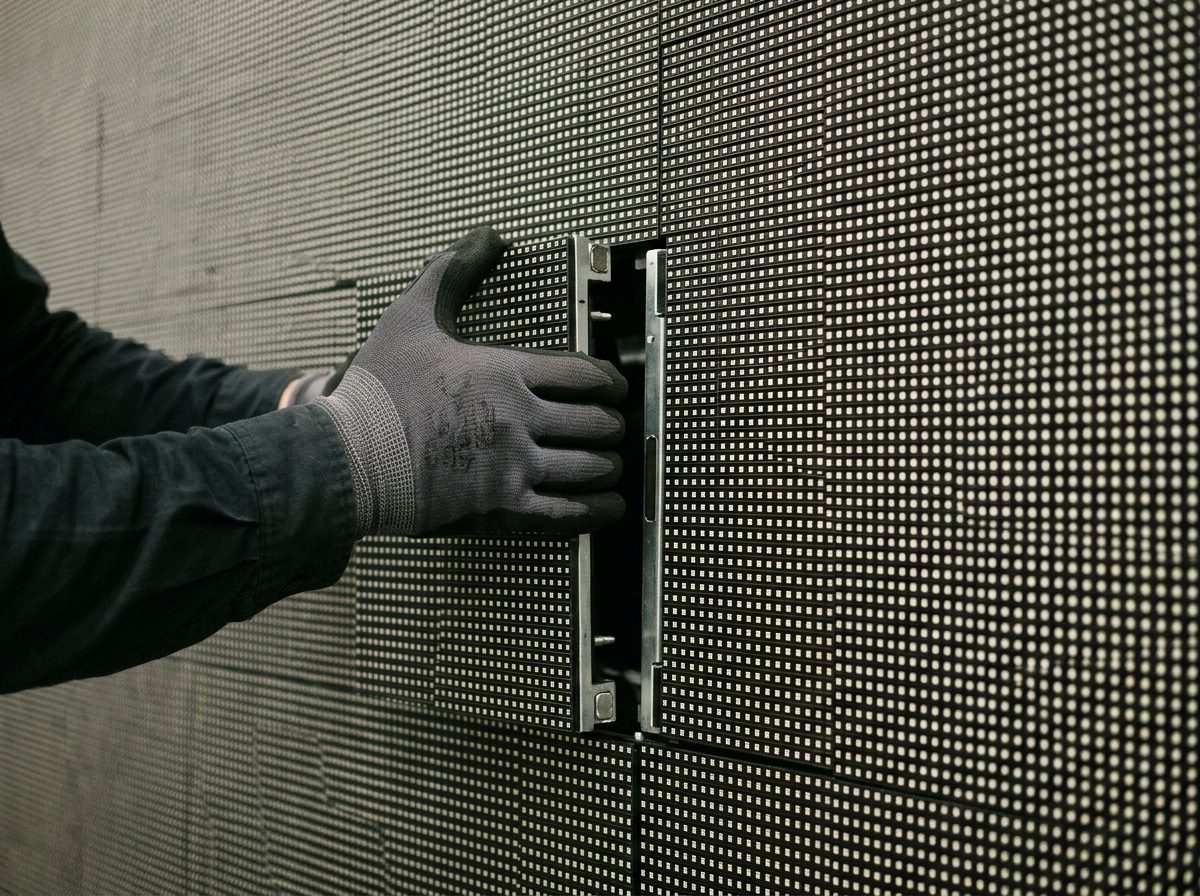 LED wall panel close-up
Three ways to show a picture. Each has one number that matters and one way it goes wrong.
Projector and screen
Lumens measure brightness. A dark room copes with a few thousand. A hall with lights on and sun through windows needs far more and still looks washed out. Ambient light is the enemy: dim the house lights over the screen and keep sun off it.
Throw
Throw is how far the projector sits from the screen for a given image width. Check the lens ratio on the projector. A longer room needs a longer lens. Keep the projector square to the screen, or the image goes trapezoid.
LED wall
Bright, works in daylight, any size. The number is pixel pitch in millimetres. Rule of thumb: the closest comfortable viewing distance, in metres, is about the pitch in mm. P3.9 means sit about 4 m back or more.
TV on a stand
Easy and sharp, but small. Fine for small rooms and side screens. Size it to the back row: if people cannot read the slide from the back, add a screen, do not add apologies.
Front or rear?
- Front: cheaper and quick. Mount the projector where nobody walks or stands in the beam.
- Rear: cleaner on stage and no shadows. Needs space behind the screen, a way for crew to get there, and the projector menu set to rear so the image is not mirrored.
Screens and walls are tall and catch the wind. Ballast every stand. LED panels are hung or stacked by the rigger or LED tech, not by general crew. Never climb a wall to adjust a panel.
05The presenter laptop
Most AV problems at a conference are not the kit. They are the laptop: an update at the wrong moment, a missing font, a video that will not play. You cannot control the presenter's laptop, but you can control the checks you make with it.
The presenter's setup
- Extend, with presenter view. Presenter sees notes and the next slide. The audience sees the slide.
- A clicker with fresh batteries. Plug its receiver into the laptop and check it from where the presenter will stand. Carry a spare.
- Turn off sleep and the screensaver. A laptop that dozes mid-talk sends a blank screen to the room.
- Turn on Do Not Disturb or Focus. No chat pop-ups, no email banners, no calendar alerts on a 6 m wall.
- Stop updates. Pause automatic updates before the event, and close everything not needed.
- Plug the charger in. Laptops slow down on battery. Mains power is part of the setup.
The files
- Fonts. If the fonts are not embedded, the slides change shape on another machine. Embed them, or save a PDF copy as a last resort.
- Videos. A PowerPoint can link to a video file instead of holding it. Put the video files in the same folder as the deck, or embed them.
- Test every video with sound. Play each one on the actual system, through the actual desk. Silent video is the commonest surprise at an awards show.
- A second machine. Keep a second laptop with the same files, ready, on a stick and online. If the first one dies, you swap and carry on.
Bring adapters: USB-C to HDMI, mini-DisplayPort to HDMI. Many laptops have no HDMI port at all and the presenter only finds out at the lectern.
Rehearse with the real laptop before doors. Start the slideshow, run every video, click the clicker from the lectern. If it works then, it will usually work live.
06Laptop and video audio into the desk
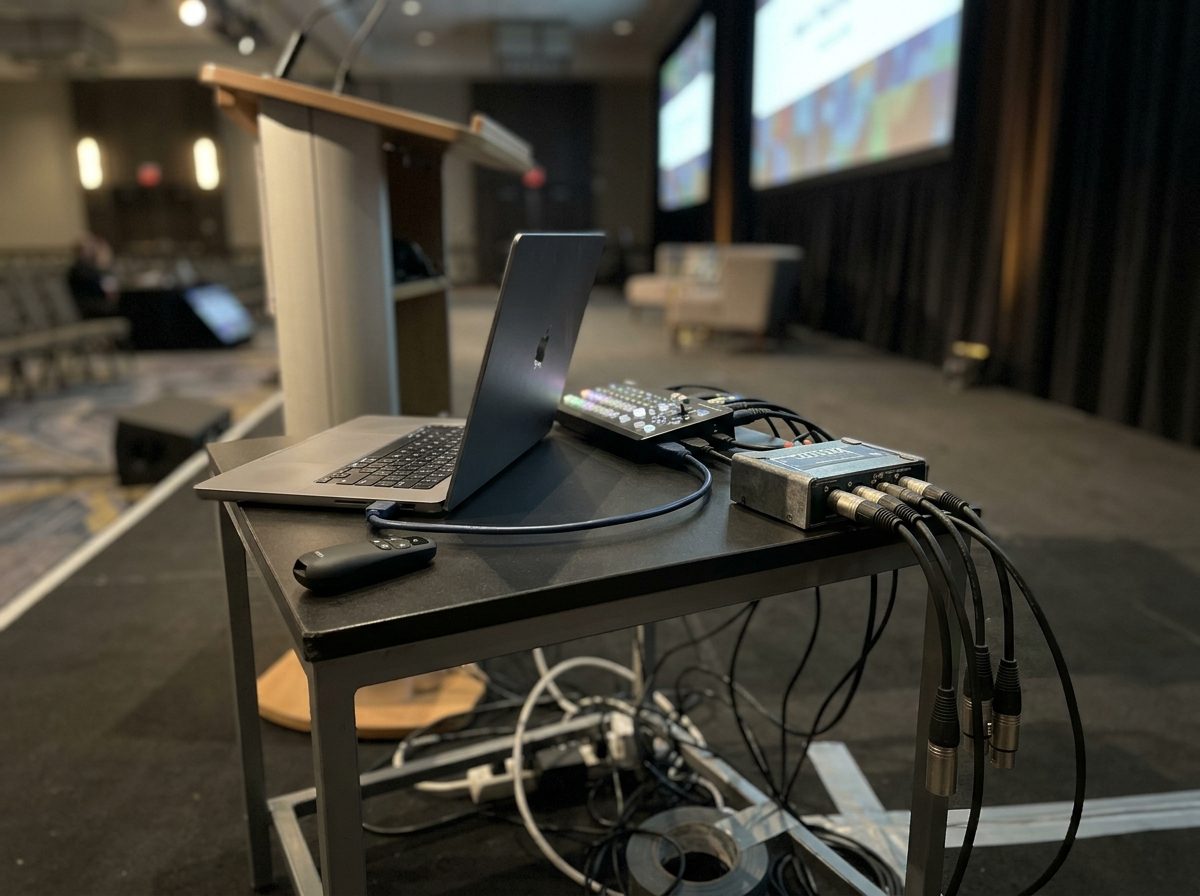
The sound of a video does not come from the screen. It comes from the laptop's headphone socket, down a cable into the mixing desk, and out of the PA. This is where hum and noise get in. One small box fixes it.
Why a DI box
A laptop output is unbalanced: two wires, no protection from noise. The desk wants a balanced line: three wires that cancel noise over long cables. A DI (direct injection) box converts one to the other. It also isolates the laptop's earth from the desk's, which is where hum starts.
- Use a stereo DI or two mono DIs. Videos and music are stereo. A mono DI on one side loses half the sound.
- Use a short lead from laptop to DI. Make the long run XLR.
- Turn the laptop volume most of the way up and set the level at the desk. A weak signal makes the desk boost the noise too.
- Check the laptop is playing from the headphone socket, not the speakers or an HDMI sound device.
Hum and the ground lift
A steady 50 Hz hum or buzz is a ground loop: more than one earth path between two pieces of kit. The DI box has a ground lift switch that breaks the audio earth link between the two ends.
- Hear hum? Flip the ground lift switch on the DI.
- Still there? Unplug the laptop charger and run on battery for a moment. If the hum stops, it is the charger.
- Still there? Swap the lead and try another DI.
The ground lift is on the DI box and only affects the audio signal. Never lift the earth pin on a mains plug or use a "cheater" plug. Mains earth keeps people alive.
Laptop audio goes through a DI box, with a short lead at the laptop and XLR to the desk. Never a long 3.5 mm to RCA lead across the room.
07HDCP and handshake problems
You plug in, the laptop says it sees the display, and the screen stays black. Nothing is broken. The laptop and the screen are still agreeing how to talk. This lesson is about why it fails and the order to fix it.
Two words in plain English
EDID
The display's business card. It tells the laptop which resolutions and refresh rates it can show. The laptop picks one from that list. If a device in the middle gives a wrong card, the laptop picks something the screen cannot do.
HDCP
Copy protection built into HDMI. The laptop only sends a picture if every device in the chain confirms it is allowed to receive it. The check takes a few seconds and can fail when a device is slow, cheap or switched on late.
Fix it in this order
- Power order. Screens, switcher and extenders on first. Connect the laptop last. Or pull the HDMI out, wait ten seconds, push it in.
- Lower the resolution. Set the laptop output to 1920 x 1080 at 60 Hz. 4K needs everything in the chain to cope.
- Swap the cable, port or adapter. A bad adapter is the most frequent cause with Macs and thin laptops.
- Go direct. Plug the laptop straight into the screen. If that works, the fault is in the middle: switcher, extender or splitter. Add them back one at a time.
- Check the screen's input. Is it on the right HDMI input? Is it asleep?
Protected content
Streaming apps and some discs mark their video as protected. If the chain fails the HDCP check, the picture goes black or you get an error. Do not try to get round it. Ask the client for a downloaded video file instead, and play that. Rehearse it.
Black screen? Do not swap everything at once. Go direct to the display. If it works, add one device back at a time until it breaks.
08Video mixer and streaming
When there is more than one source (a laptop and a camera, say), you need something to choose between them. That is a video mixer, or switcher. It also feeds the stream.
B&W is adding a video mixer/streamer. It switches laptop, camera and graphics, sends the program to the screens and to the stream, and can record a local backup.
Program and preview
- Program is live: what the room and the stream see right now.
- Preview is next: a shot you set up first and check. Never cut to a source that is not on preview.
- A cut is instant. A dissolve blends. Use cuts and the occasional dissolve. Fancy wipes date a show.
- The screens in the room take the program output. A stage or lectern monitor can show preview or program for the presenter: decide which beforehand.
Streaming
A stream is the program picture and the desk's sound, squashed by an encoder and sent over the internet. The internet link is the weak spot. Sending a picture needs upload speed, not download. Venue wifi is the usual trap: shared, slow in the upload direction, and it drops when the hall fills with phones.
- Use a wired connection. Cable from the encoder to the venue's router or a port the venue provides. Not wifi.
- Test upload speed on site, on that cable, at the time of day of the event.
- Keep double. Your upload should be about twice the stream bitrate, so a dip does not drop the stream.
- Record a backup locally from the first minute, to a drive on the mixer or encoder.
At B&W the video mixer/streamer is the one place that sends the program to the room, the encoder and the recording, so the local backup starts there.
Try it: is the upload enough?
| Stream | Bitrate | Upload to have (one destination) |
|---|---|---|
| 720p | 3 Mbps | 6 Mbps |
| 1080p 30 | 5 Mbps | 10 Mbps |
| 1080p 60 | 8 Mbps | 16 Mbps |
| 4K | 20 Mbps | 40 Mbps |
Each extra destination sent from the venue multiplies the need. Always twice the bitrate.
Wired, tested, double the bitrate, and a recording running from the first minute. Wifi is not a stream plan.
09AV checklist and fault table
Work down this list before doors. Tick each box. A system that passes ten checks in the quiet is far more likely to pass the one that counts.
- Know the chain
Sources, switcher, screens, audio path. Who is the contact for the presenter. - Right link for each run
Passive HDMI only for short runs, HDBaseT or fibre for the rest. Labelled at both ends, taped down. - Power on everything
Screens, switcher, extenders and converters. Extenders need power at the ends. - Screens at native resolution
Correct input selected. Picture fills the screen, no stretching. - Laptop connected last
Extend mode, presenter view working. Slides are 16:9. - Videos with sound
Every video played through the real system, with sound at the desk. - Audio through a DI
Stereo, laptop volume up, level at the desk. Listen for hum. Ground lift tried if needed. - Clicker, charger, sleep off
Clicker tested from the lectern. Charger in. No notifications. - Spares at the lectern
Second laptop with the files. Spare HDMI cable and adapters. Spare clicker batteries. - Stream and backup
Wired, upload tested, recording started before the first speaker.
If it goes wrong
| You see or hear | Most likely | Check |
|---|---|---|
| No picture | Cable out, no power, wrong input, or a failed handshake | Walk the chain. Go direct to the screen. Reconnect the laptop last. Lower to 1080p |
| Wrong aspect: stretched, or black bars | 4:3 slides on a 16:9 screen, or the laptop set to another resolution | Set output to the screen's native resolution. Ask for 16:9 slides. Never stretch |
| Flicker or sparkles | Cable too long or poor, refresh rate mismatch, loose connector | Shorter or better cable. Set 60 Hz. Reseat both ends. On an LED wall seen by camera, ask the LED tech to match the camera shutter |
| Hum or buzz in the sound | Ground loop, or an unbalanced lead | Ground lift on the DI. Try the laptop on battery. Short lead at the laptop, XLR to the desk |
| No sound from a video | Laptop output set to HDMI or speakers, volume muted, desk channel muted | Choose headphone out in the laptop sound settings. Raise laptop volume. Check the desk channel and fader |
| Stream dropping | Wifi, or upload too small for the bitrate | Wired cable. Test upload. Lower the bitrate. Keep the local recording running |
Source first, then forward. One change at a time. Picture and sound are two paths.
10Check what you learnt
Ten questions. Pick an answer for each, then press Mark my answers. You need 8 out of 10 to pass this module. You can retry as often as you like.
Ten questions. Circle one answer for each. The answer key is on the last page. Pass mark: 8 out of 10.
Answer key
Photos: product images courtesy of the manufacturers (RCF, Neutrik) and their distributors; scene photographs are AI-generated illustrations and do not show B&W Productions equipment or events.