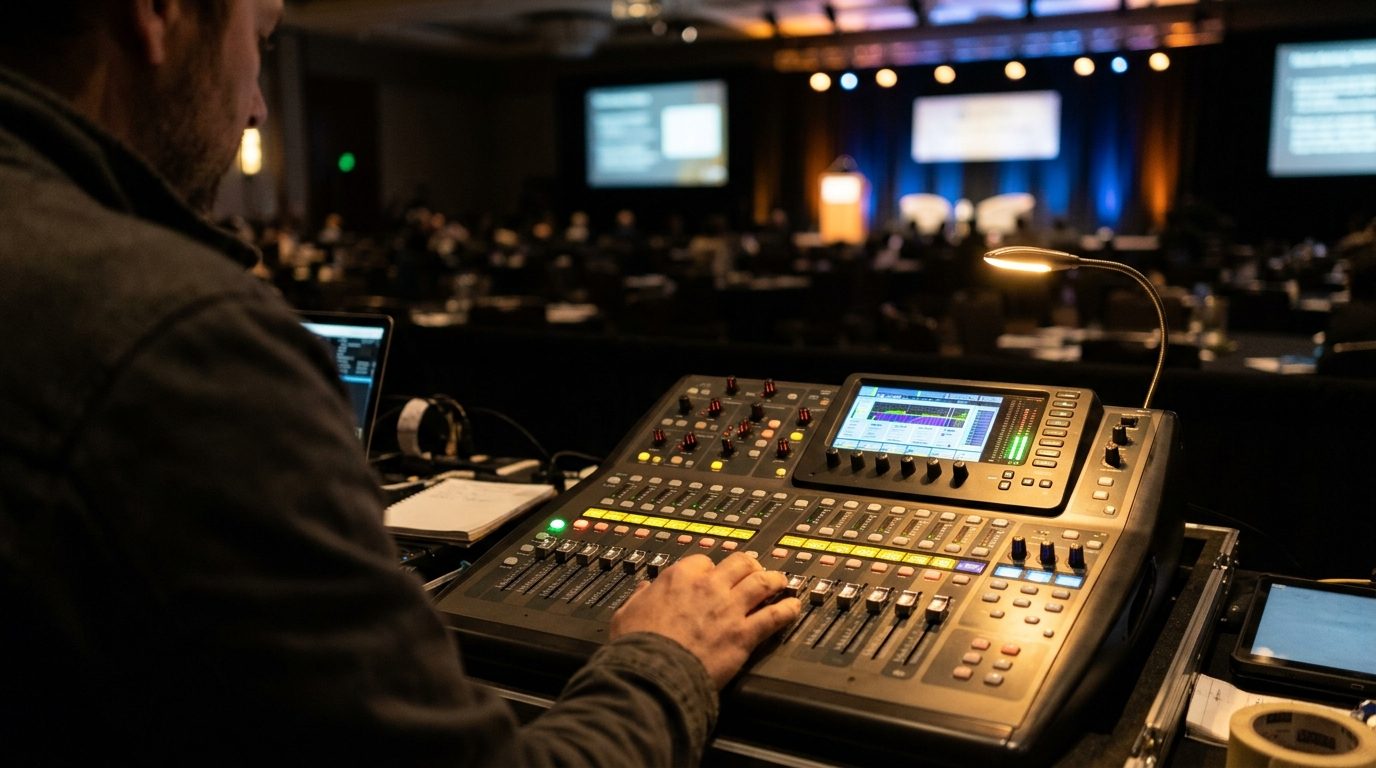
01Analogue vs digital: what changes
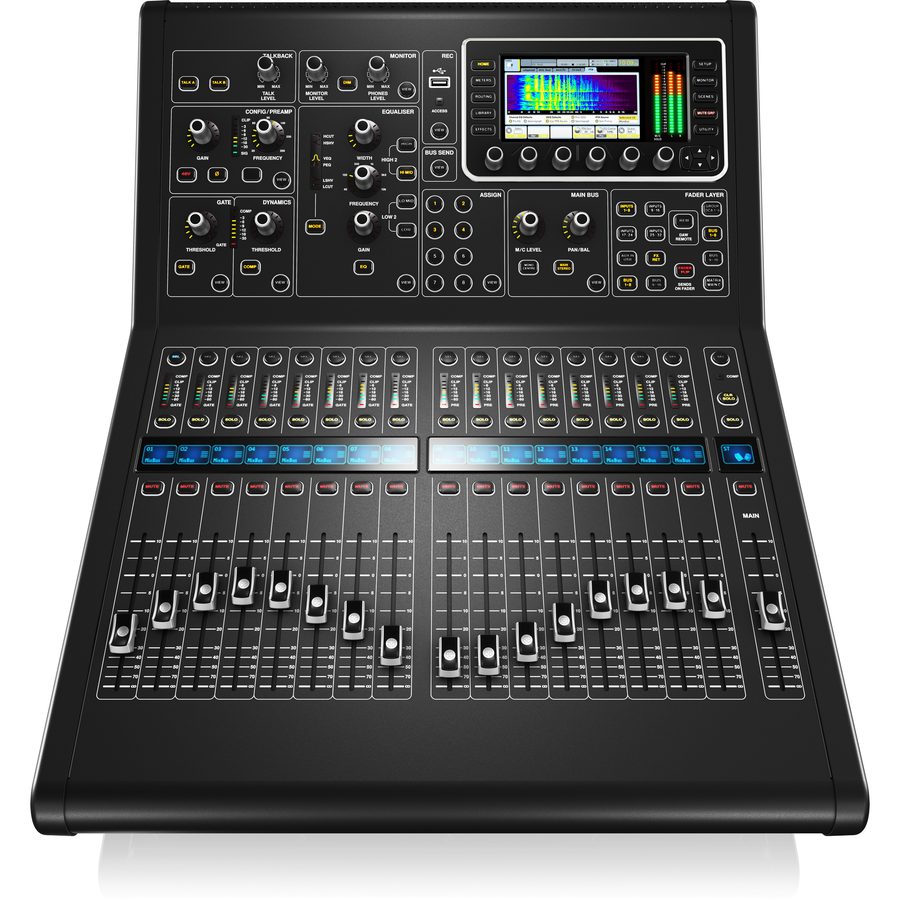 A 16-fader digital desk (M32R class)
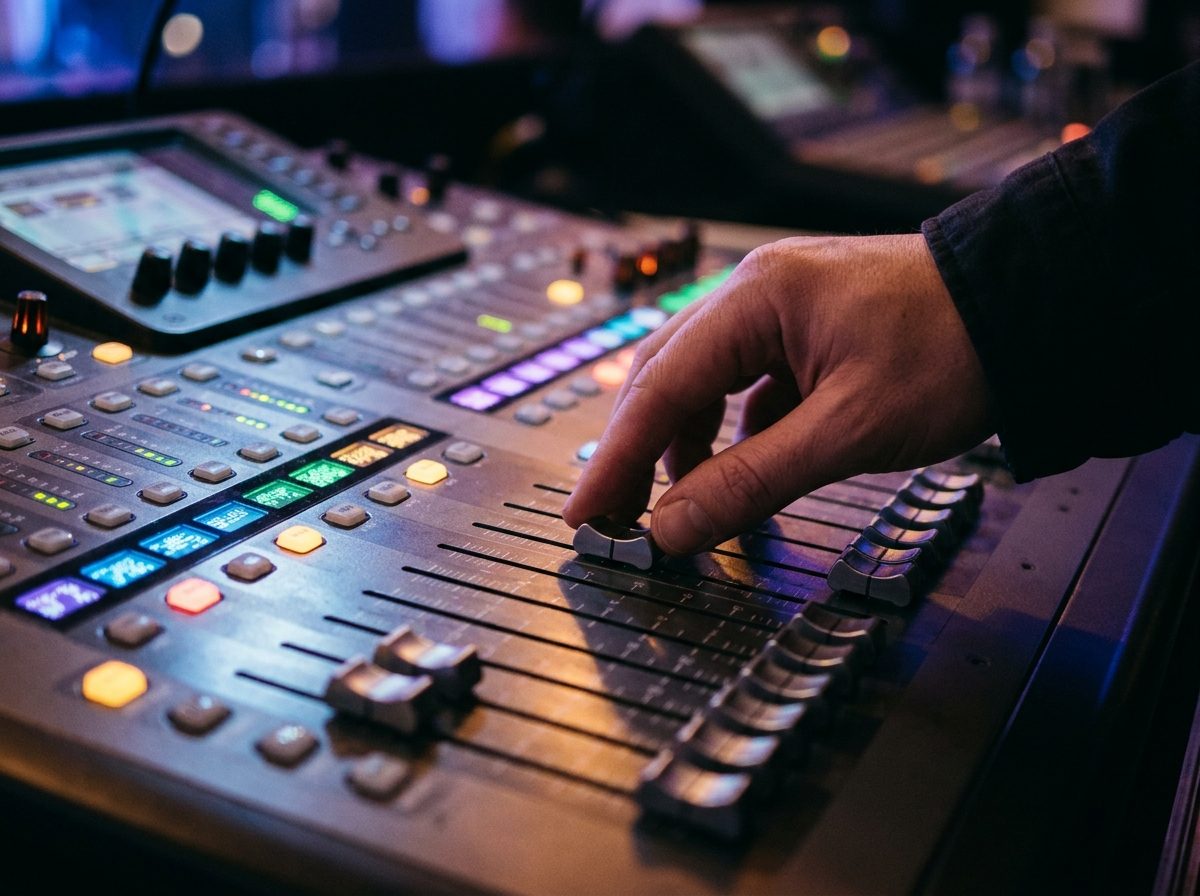 Fader bank with scribble strips
A digital desk does the same job as an analogue one: take signals in, shape them, send them out. What changes is where the controls are and where the settings live. Most digital desks work the same way, so learn the pattern once and a new desk stops being scary.
1 · Layers (banks)
A 16-channel desk has 16 faders but far more channels inside. The layer buttons choose which channels the faders show. Fader 3 is channel 3 on one layer and channel 19 on the next.
2 · One set of knobs
Analogue: a row of knobs for every channel. Digital: one set of knobs, and it controls whichever channel you pressed SELECT on. Select first, then turn.
3 · Scenes
The whole desk, every fader, EQ and routing, can be saved as a scene and recalled later. Analogue desks had a pencil and a photo of the knobs.
4 · Stage box on one cable
The mic preamps can sit in a stage box. One shielded Cat5e or Cat6 network cable replaces the heavy multicore snake.
5 · It is software
Inputs, outputs, buses and effects are all routed on the screen. Flexible, but you can hide a mistake in a menu.
In the B&W kit: B&W is moving to a 16-channel digital desk of the Midas M32R class. Everything in this module applies to it.
| Job | Analogue desk | Digital desk |
|---|---|---|
| Change a channel's EQ | Reach for the knob on that channel | Press SELECT on the channel, turn the shared EQ knobs, or use the screen |
| See everything at once | Look along the desk | Press Home or the overview screen, or change layers |
| Come back to last week's settings | You cannot | Load the show file or recall a scene |
| Add a monitor mix | Needs spare aux knobs on every channel | Buses and sends are already there; assign them |
| Switch on | Instant | Takes a minute to boot. Never power-cycle it mid-show. |
Find three things: the SELECT button on a channel, the layer buttons, and the Home screen. If you are lost, press Home. Then find the meters.
A desk that loses power in the middle of a speech comes back with a boot screen and a silent room. Plug it into a clean supply, not the same outlet as a dimmer pack or a motor, and never switch it off to "reset" a fault during a show.
02Inputs and the patch
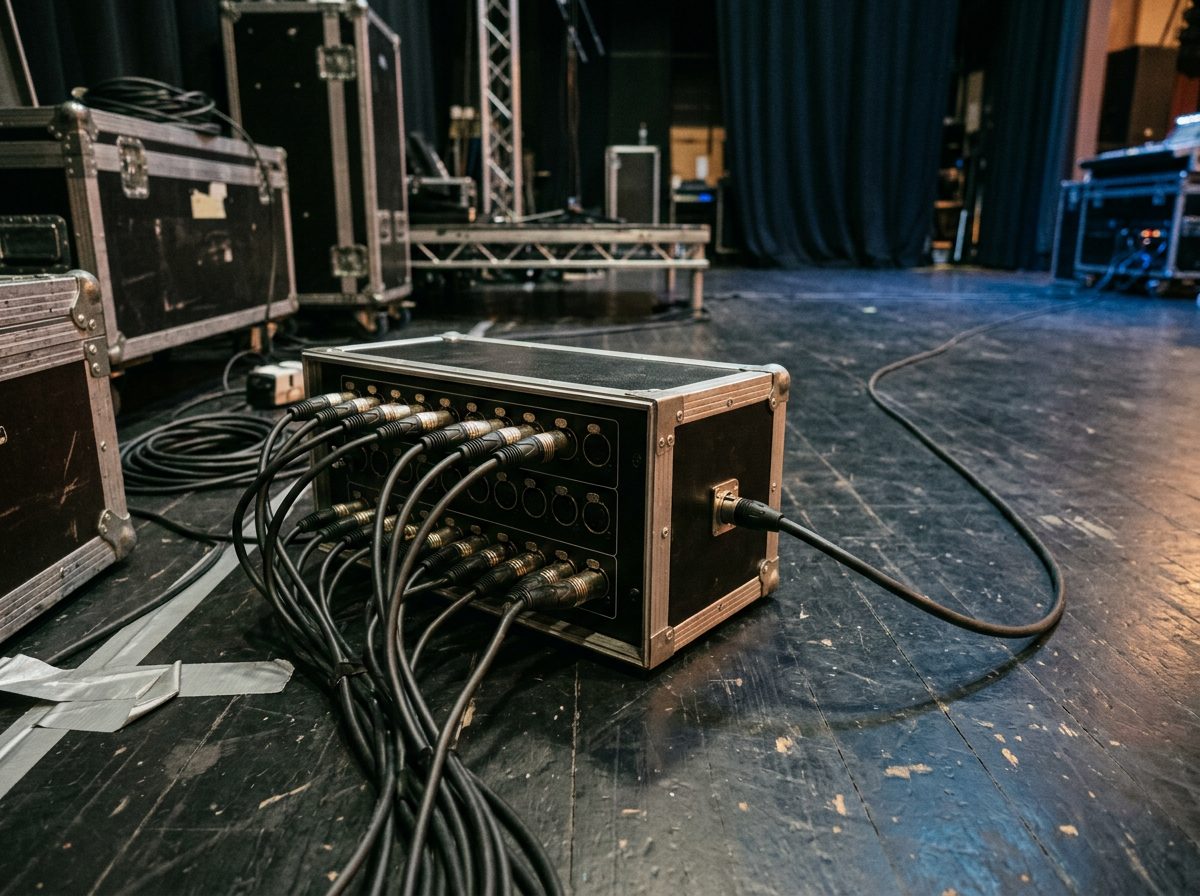
Every sound source reaches the desk through an input socket. The patch is the list that says which socket feeds which channel. Get the patch written down before load-in and half of the show-day problems never happen.
Where inputs live
Stage box
A box with XLR sockets and the mic preamps, placed where the mics are. It sends everything to the desk on one network cable. The gain knobs for these preamps are on the desk, not on the box.
Local inputs
XLR sockets on the desk itself. Handy for the laptop DI or the MC, close to the engineer. They are patched the same way.
Wireless receivers
A radio mic is a normal input once it is past the receiver. Each receiver output is an XLR that plugs into a stage box or local input and takes one channel.
In the B&W kit: Shure wireless, 2 handhelds and 4 Countryman headsets. That is 6 receiver outputs, so 6 of your 16 channels.
By default, input 1 feeds channel 1, input 2 feeds channel 2 and so on. The patch lets you break that. If someone plugged the lectern into the wrong socket, you can fix it on the desk in ten seconds, without crawling under the stage. Most desks set the source for each channel on a Config or routing page. Check it by plugging a source in and watching the meter on the channel you expect.
The patch sheet
A patch sheet is one page: one line per channel. Fill it in with the engineer before the event, print two copies, tape one beside the desk and give one to the stage crew. Stage crew plug in by the sheet. The engineer sets up by the sheet. Nobody guesses.
| Ch | Source | Mic / DI | Stand | Phantom |
|---|---|---|---|---|
| 1 | Lectern | Gooseneck mic | Lectern mount | If condenser |
| 2 | MC handheld | Wireless handheld | In hand | No |
| 3 | Laptop L | DI box | On the table | No |
| … | One line per channel. Leave the bottom two channels empty for surprises. | |||
Try it: build a channel list
Pick the event. The tool builds the patch sheet and counts the inputs against a 16-channel desk.
| Ch | Source | Mic / DI | Stand | Phantom |
|---|
| Event | Typical inputs | Spare on 16 |
|---|---|---|
| Speech-only conference | 8 | 8 |
| Conference plus band of 4 | 14 | 2 |
| DJ plus MC | 4 | 12 |
| Each extra headset adds one input. | ||
Speech mics first, then playback, then music, then band. The engineer's hands learn it. Never move a channel in the middle of a show.
Phantom (+48 V) feeds a condenser mic from the desk. Dynamic mics and DI boxes do not need it, and a ribbon mic can be damaged by it. Switch it on with the channel muted. Leave it off on everything that does not need it.
03The channel strip, in order
Every channel on the desk is the same chain of processors, in the same order. The signal goes through them one after another. If you know the order, you know where to look when a voice sounds wrong.
| Stage | What it does | Speech starting point |
|---|---|---|
| Gain (trim) | Sets how strong the mic signal is when it enters. The most important knob on the desk. | Set while the person talks at normal volume. See Lesson 4. |
| Phantom (+48 V) | Powers condenser mics. | On only for condensers, with the channel muted. |
| Low cut (high-pass) | Removes rumble and boom below a set frequency. | On for every speech mic. Start around 100 to 120 Hz. |
| Gate | Closes the channel when the signal is quiet. | Off for speech. It chops the soft ends of words. |
| EQ | Boosts or cuts bands of frequency. | Flat first. Cut before you boost. A small cut around 250 to 400 Hz clears a boxy voice. |
| Compressor | Turns down the loud bits so loud and soft speakers sit closer. | Gentle: ratio about 3 to 1, 3 to 6 dB of reduction on the loudest words. |
| Fader | The level into the mix. | Around the unity mark (0 dB). Ride it from there. |
| Pan | Left or right placement. | Speech in the centre. Music pairs hard left and right. |
| Mute | Switches the channel off. | Every mic muted unless someone is speaking. |
Why the order matters
Gain comes first because everything after it works on whatever level you gave it. Low cut comes before the compressor so the compressor does not react to rumble. Most desks let you move the dynamics before the EQ, but leave the default alone until you know why you are changing it.
The first two stages are analogue: a real preamp. Right after them the signal is turned into numbers. Everything else is arithmetic on those numbers, which is why your settings can be saved and recalled exactly.
Source plugged in and patched. Gain up. Channel not muted. Fader up. Channel sent to the main. When a mic is dead, walk down that list in that order.
04Gain staging on a digital desk
Module 2 gave you the idea: strong signal, never clipping. On a digital desk the numbers are exact, so the rule can be exact too. The meter scale is dBFS: decibels below full scale. Zero is the ceiling. Everything is a minus number.
| Meter | Level (dBFS) | Meaning |
|---|---|---|
| Green | below about −12 | Normal. A talking voice averages around −18. |
| Amber | −12 to about −3 | Peaks live here. Occasional flicker is fine. |
| Red | above about −3 | Too close to the ceiling. Pull the gain down. |
Why average −18 and peaks −12 to −6, both at once? Speech is peaky. The loud syllables are about 12 dB above the average level. Set the average at −18 and the peaks land around −6. That is the same rule as Modules 1 and 2: peaks in the −12 to −6 range, no red.
Why digital is different
An analogue desk clips softly: it distorts a little and gets worse. A digital system clips like a wall. The moment the signal passes 0 dBFS the top is sliced flat and it sounds like a crack. The clip happens at the converter, right after the preamp. The fader is further down the chain, so turning the fader down does not fix a clipped input. Only the gain knob does.
- Fader at unity, channel unmuted, main output muted or the amps off.
- Press SELECT on the channel and look at its input meter (or pre-fader meter).
- Ask the person to speak at their real, loud-ish speaking level. Not "test, test". A paragraph.
- Turn the gain until the average sits around −18 and the loudest words flicker between −12 and −6.
- Do the next channel. Then bring up the main and set the volume with the faders, not the gain.
Try it: read the meter
| Peak (dBFS) | Verdict |
|---|---|
| −3 or higher | Too hot, clipping risk. Gain down. |
| −12 to −6 | Target. Leave it. |
| −24 to −13 | Low. Gain up. |
| below −24 | Hiss comes up. Gain up a lot. |
In the B&W kit: the desk's main outputs go on XLR to the FBT DLM 260 processor (Module 7). Set the gain here, then the processor and amps see a clean level.
Set each gain once, with the person speaking, then leave it. If the room needs to be louder, the fader and the main go up. If the gain has to move during the show, a person changed their mic technique, and you should say so to the engineer.
05Buses and monitor mixes
The main mix is what the audience hears. A bus is another mix of the same channels, sent somewhere else: to a stage monitor, to an effect, to a recording. Each bus has its own set of send levels, one per channel, so the DJ can hear a different mix from the room.
Pre-fader or post-fader
Pre-fader: for monitors
The send is taken before the channel fader. When you pull a fader down to fix the room, the stage mix does not change. The performer hears a steady mix whatever you do out front.
Post-fader: for effects
The send follows the fader. Fade the voice out and the reverb fades with it. If it were pre-fader, the reverb would hang in the air after the voice stopped.
Sends on fader
Sending 16 channels to a monitor bus knob by knob is slow. Sends on fader turns the 16 channel faders into the send levels for one bus. You press the bus button, the faders jump to show that bus's levels, and you build the mix by pushing faders. Press the button again and the faders go back to normal.
- Press the bus (Mix) button for the monitor you are building. Sends on fader switches on.
- Check the sends are set to pre-fader for that bus.
- Pull all the faders down. Bring up only what the performer needs, one source at a time.
- Raise the monitor level slowly, with the performer listening, until they say "that's it".
- Press the button again to leave sends on fader. Check the main mix is back in front of you.
The DJ booth monitor
A DJ listens to the music, not to the room. Send the DJ channels, left and right, pre-fader, to the booth mix. Add a little of the MC mic so the DJ hears when the MC speaks. Leave out anything else. A loud monitor in the booth makes a loud DJ.
The presenter's wedge
Most speakers do not need a wedge: the PA is in front of them. If one is asked for, put it at the side, not in front of the mic, and send only the laptop or video sound and a little of the other speakers. The presenter's own mic goes in last and very low, because a wedge pointed at a mic is the quickest feedback you can build (see Module 1).
The mic hears the wedge, sends it back to the desk, the wedge plays it again, and the loop climbs until it howls. Wedge to the side. Presenter's own voice low or off. Ring it out with the engineer before doors.
06DCAs and mute groups
At a conference you may have six or eight mics open at different times and music running underneath. You cannot ride six faders at once. DCAs and mute groups put the whole job under one finger.
DCA: one fader for a whole group
You assign channels to a DCA, for example all the speech mics to DCA 1 and all the music to DCA 2. Move DCA 1 and every mic moves, with the balance between them kept. No audio passes through a DCA. It only changes the levels of its channels. Name it: "MICS", "MUSIC".
- Mics up or down together: if the room is a bit loud for speech, take DCA 1 down 2 dB. Nothing else in the mix changes.
- Music under speech: pull DCA 2 down when the MC starts and bring it back after.
- Fewer faders to watch: six open mics become one fader to ride.
Mute groups: everything off with one press
A mute group is a button that mutes every channel assigned to it. Put every mic in one group and call it "ALL MICS OFF". Press it between speeches, during applause, and any time the stage goes quiet. Press it again to bring the mics back.
| Tool | Does | Use it for |
|---|---|---|
| DCA | Changes level of a group | Riding speeches, bringing music down under the MC |
| Mute group | Switches a group off or on | All mics off between speakers; stage reset |
| Channel mute | Switches one channel off | A single mic not in use |
Why mute? Every open mic adds noise and feedback risk. A good rule of thumb is that the gain before feedback drops about 3 dB every time the number of open mics doubles. Two open mics are fine. Eight open mics ring.
Unmute only the mic that is about to be used. When they finish, mute it. The mute group is the safety net for when you are too slow: press it, then bring up the next one.
07Effects: reverb and delay
Digital desks carry built-in effects: reverb, delay, chorus. They are useful for music and for a band. For a corporate speech they are almost always the wrong thing to reach for. Learn how they are connected, and learn to leave them alone.
Effects live on returns
You do not put reverb on a channel. You send a little of each channel to an effects bus (post-fader, remember Lesson 5). The effects engine adds the reverb and returns it into the main mix on a channel of its own. The dry voice stays dry. The wet effect is a separate level you can turn up or down, or off.
| Source | Reverb | Delay |
|---|---|---|
| Speech: lectern, MC, presenters | None, or a hint (you should not be able to point at it) | None |
| Awards announcements | None to very little | None |
| Playback video and music | None; it already has its own | None |
| Live vocals and band | A little, short. Short means a room or small plate setting | Light, for a lead vocal only |
| DJ's MC hype | A little reverb and an echo on shouted phrases only | Used as an effect, switched on and off |
Why speech wants none
Speech is understood through its consonants: the quick, quiet sounds like t, k and s. Reverb smears them. A venue already adds its own echo, and the PA adds the room's reverb again. A hall plus a reverb effect is mush at the back. Dry is clear.
The effects delay on the desk is a different thing from the delay in the speaker processor you set in Module 7. That one lines up a fill speaker with the mains. This one is a musical echo. Do not mix them up.
Play the voice in the room. If anyone can say "there's reverb on that", it is too much. For a speech, turn the return down to nothing and leave it there.
08Scenes and safety
A scene is a saved snapshot of the desk: faders, mutes, EQ, sends and more. It is the best feature of a digital desk and the easiest way to hurt yourself with one. Used well it gets you from soundcheck to doors in a second. Used badly it changes a live mic's gain in front of 400 people.
- Name the show: date, venue, event. Example: 24OCT_Sandton_AwardsNight. A show with a name nobody can read is not backed up.
- Save a scene before doors: after soundcheck, save "1_Doors" with the walk-in music set. Number the scenes in the order you will use them.
- Save the next ones: "2_Speeches", "3_Awards". Each is a starting point. They do not replace your hands.
- Back up to USB: save the show file to a USB stick, then copy it to a second stick or a laptop. If the desk dies, a spare desk loads the file and you are back in minutes.
Recall safe
Recalling a scene sets everything to the saved values at once. In the middle of an event, that can mean a gain jump or an unmuted mic. Recall safe protects chosen parts of the desk from a recall. Safe the input gains, the mute groups, and anything you adjusted for the room. A recall then moves only what you meant it to move.
| Do | Do not |
|---|---|
| Recall scenes between speeches, when the stage is silent | Recall a scene while someone is speaking |
| Try a recall once at soundcheck with the amps off, to see what it moves | Recall a scene for the first time live |
| Save over a scene only on purpose, with its name in front of you | Hit Save without reading which slot is selected |
| Update the desk's firmware weeks before an event | Update firmware on show day |
Label everything
Every channel has a scribble strip: a small screen or label showing its name and colour. Name every channel from the patch sheet: LECT, MC HH, HEAD 1, LAP L, LAP R, MUSIC. Give mics one colour, music another, effects a third. Then put a strip of white tape under the faders with the same names in marker. If the screen fails, the tape still works. And a stranger who covers for a break can read the desk.
A recall changes many things at once and you cannot take it back by feel. Know which parts are protected, do it in silence, and keep one hand ready on the main fader.
09Mixing a corporate event
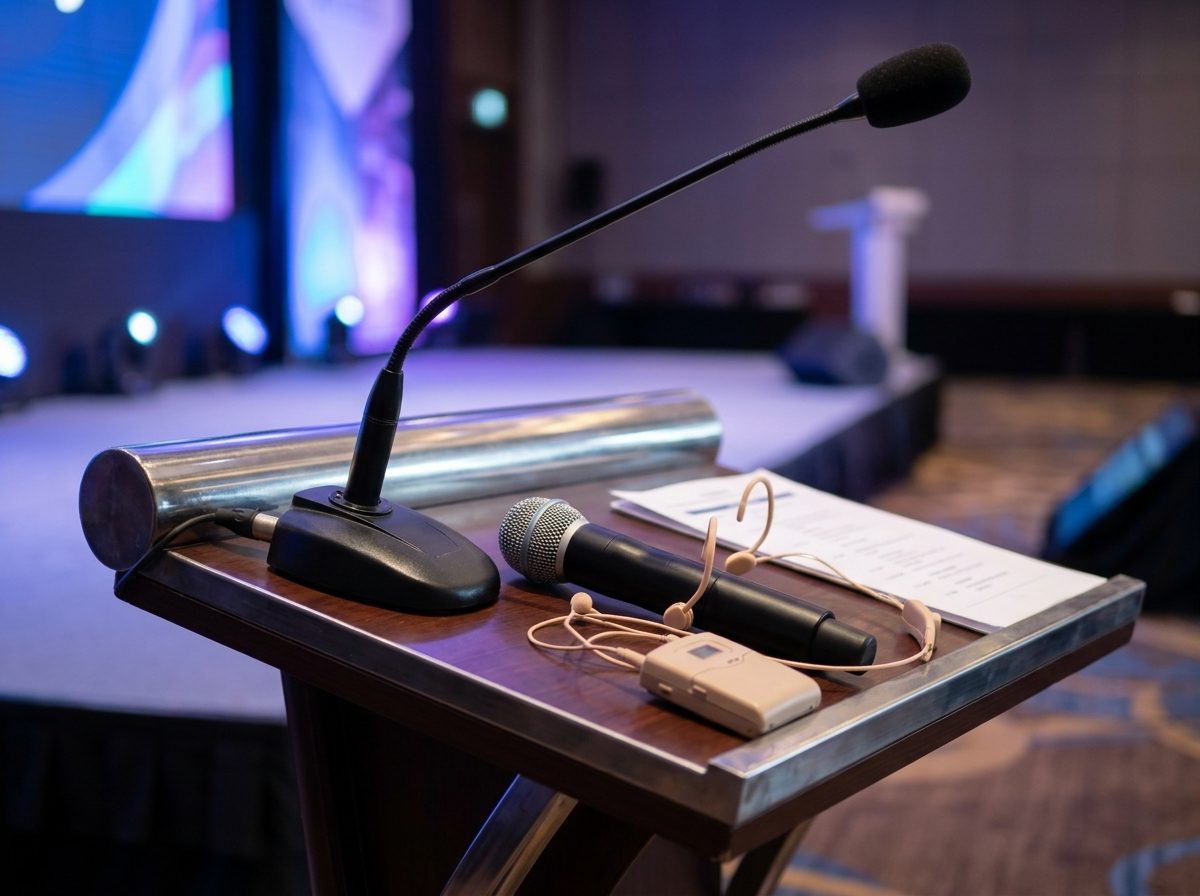
A corporate event is judged on one thing: could everyone hear every word? Loud is not the target. Clear is. The mixing is mostly quiet, careful attention rather than clever technical moves.
Make the speech intelligible
- Keep it dry and close. The mic close to the mouth (about a fist from a handheld, the headset boom at the corner of the mouth) means less room sound and more voice.
- Low cut on, reverb off, gate off. The strip settings from Lesson 3.
- Aim for about 75 dB(A) in the room. Enough to hear easily, not enough to be a performance (Module 2).
- Listen from the back. The desk is the worst place to judge speech. Walk the room. If the back row cannot follow, ask the engineer about the fill speakers.
Ride the faders
People do not speak at a steady level. Start with each mic at unity, then ride: a little up when a speaker drops their voice, a little down when they lean in. Small moves, 2 to 3 dB, made before anyone notices. Use DCA 1 for the whole group and the channel fader for the one person who is quieter.
Walk-in music
The music while guests arrive should be background: people talk over it without raising their voices, about 60 to 70 dB(A). Bring it up slowly as guests arrive. When the MC steps up, pull DCA 2 down before the mic comes up, not after.
Awards night flow
- Walk-in music at the low walk-in level.
- MC welcome: music down, MC mic up, a mic check from the MC before the guests sit.
- Sting: a short music hit to open a segment. Play it full, then fade. It is the one time music is louder than speech, for a few seconds.
- Walk-up music for the winner: up as their name is read, down as they reach the stage.
- Lectern mic: unmuted only when someone is standing at it. Mute the MC's handheld while a presenter speaks, and unmute it again just before the MC steps in.
- Applause: music bed back in, mics muted.
From doors to the last guest leaving, someone who knows the desk sits at it. Not for a toilet break, not to fix a cable. If you must go, hand over by name to another crew member and tell them what is live. A desk with nobody on it is one stray guest or a feedback howl away from a bad night.
Show-day routine
Print this, tape it to the case, tick it every time.
- Power up in order
Desk first and let it boot. Then the speaker processor. Amps last, with the main output muted. - Load the show file
From the USB stick. Check the show name, then the patch against your sheet. - Check the wireless
Fresh batteries in every handheld and bodypack. Receivers on, the right channels on the right strips. - Line check every channel
Speak or tap each one. The meter moves, the right strip lights, the sound comes from the right place. - Set the gain
With the real person talking. Average −18, peaks −12 to −6, no red. - Check the groups
DCA 1 moves every mic. DCA 2 moves the music. The "ALL MICS OFF" mute group mutes every mic and nothing else. - Monitors and feedback
Build the wedge or booth mix. Ring out the lectern mic with the engineer at speech level. - Soundcheck from the back
Walk the room with a speaker talking. Check the back, the middle and the front. - Save the scenes
1_Doors, 2_Speeches, 3_Awards. Check recall safe is set. - Back up
Save the show to USB. Copy it to the second stick. Label the sticks. - Name the person at the desk
Say it out loud. Who is on the desk, and who covers them for a break. - After the event
All mics muted and off. Amps off first. Then the desk. Save the show file again before shutting down.
Patch it, gain it, group it, save it, then sit at it and listen from the back.
10Check what you learnt
Ten questions. Pick an answer for each, then press Mark my answers. You need 8 out of 10 to pass this module. You can retry as often as you like.
Ten questions. Circle one answer for each. The answer key is on the last page. Pass mark: 8 out of 10.
Answer key
Photos: product images courtesy of the manufacturers (RCF, Neutrik) and their distributors; scene photographs are AI-generated illustrations and do not show B&W Productions equipment or events.